EMIS Configuration
Important
This section applies only to EMIS Web users. TPP SystmOne users do not need to complete this step.
Before users can log in to the conneQt® Toolbar on an EMIS Web machine, the EMIS Database ID (EMIS DB ID) must be configured. This is a one-time setup step that tells the Toolbar which EMIS database to connect to.
The EMIS DB ID is displayed at the top of the screen when logging in to EMIS Web. If you are unsure of the value, ask a local administrator, it is typically a short numeric code.
Login Steps
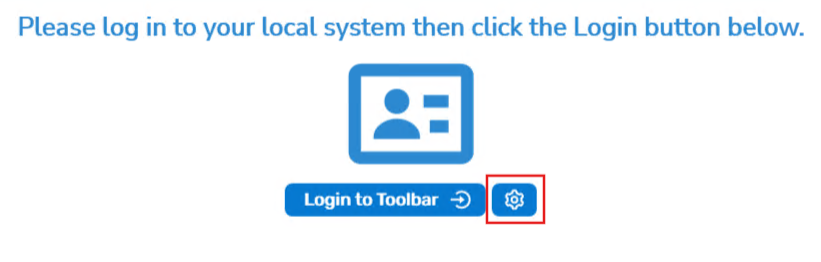
- On the conneQt® Toolbar login screen, click the cog icon (⚙️).
- Enter your EMIS DB ID.
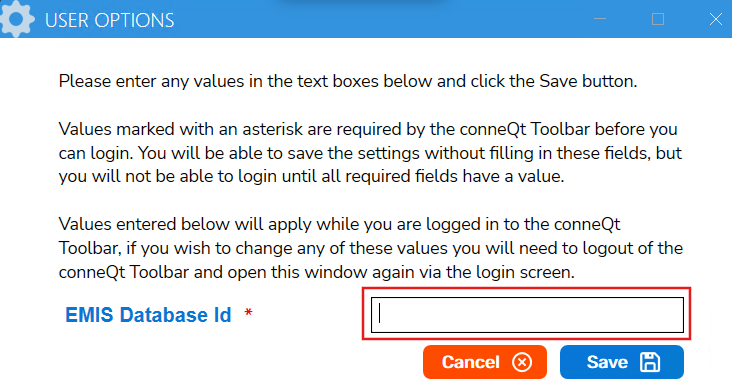
- Click Save.
- The conneQt® Toolbar login screen will be displayed.
Next Steps
No further steps required. Proceed to the User Guide.