How to Login
Ensure the user has logged into the local system (EMIS Web or SystmOne TPP) before attempting to login the conneQt® Toolbar.
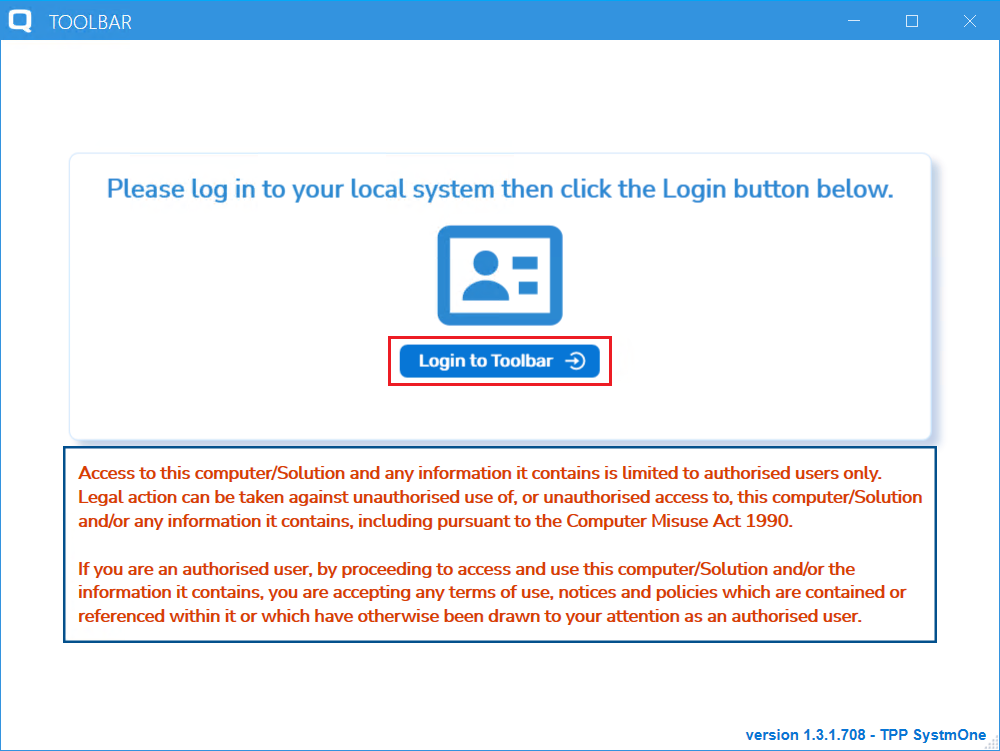
The Toolbar automatically loads upon computer startup, click the “Login to Toolbar” button. Refer to Manually Load the Toolbar if the Toolbar has not automatically loaded.
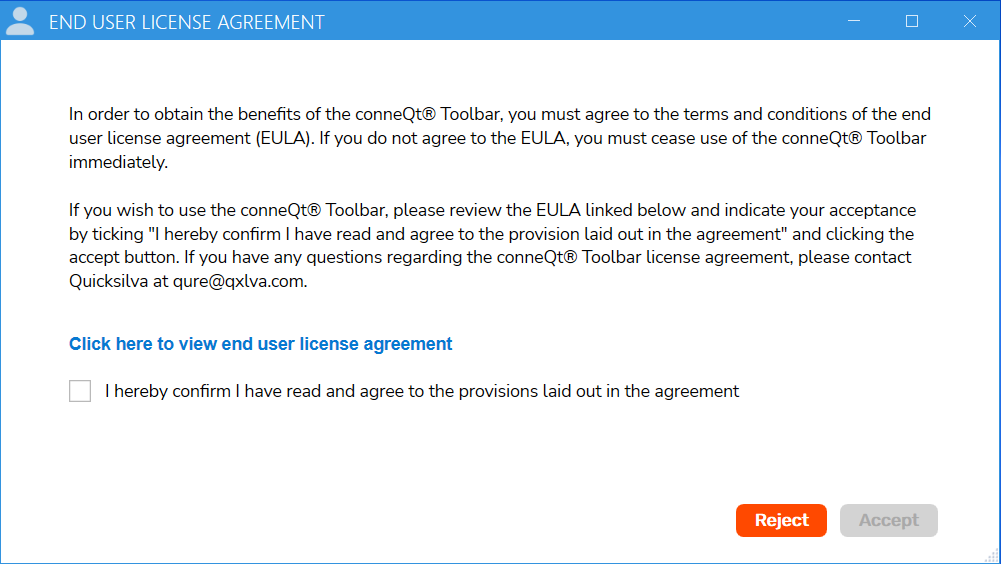
On first login, review and read the "End User License Agreement" before accepting and proceeding.
Once the agreement has been read, tick the confirmation box and click “Accept”.
Note
Periodically when logging in the user will be prompted to review this End User License Agreement when it has been updated.
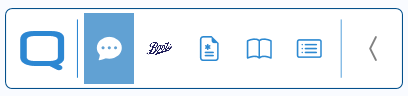
Once all of the above steps have been completed, the Toolbar will open and look similar to the image below.
Manually Load the Toolbar
To manually load the Toolbar:
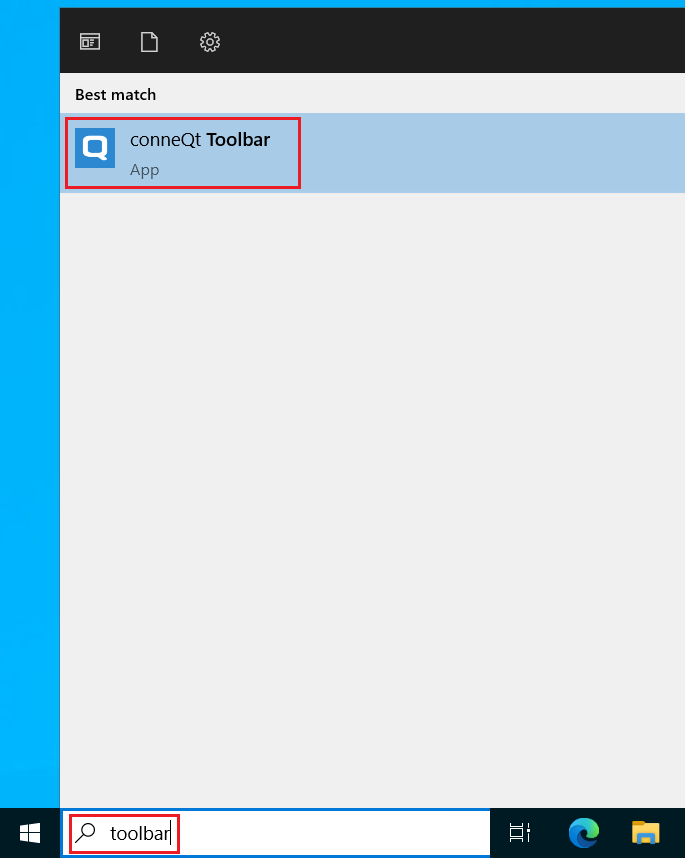
- Click the Microsoft Windows button in the bottom-left corner of the screen.
- Search for 'Toolbar'.
- Select 'conneQt Toolbar' from the search results to load it.
Note
The Toolbar will automatically load upon computer startup. If this does not happen, refer to the section: Manually Load the Toolbar
Re-open the Toolbar
If the Toolbar has been closed, refer to Manually Load the Toolbar to open it again.