Dual PAS Installations (EMIS Web and TPP SystmOne)
Important
This section only applies to sites where both EMIS Web and TPP SystmOne are installed on the same machine. Most practices use a single PAS. You do not need to follow this guide if you only have a single PAS installed.
Ensure previous guides have been followed before proceeding:
When both EMIS Web and TPP SystmOne are installed on the same machine, the conneQt® Toolbar allows users to switch between the two integrations at login. This page explains how the Toolbar handles multiple PAS integrations, including how to switch between them, and how the Toolbar remembers the last used system.
Initial Launch
Upon opening the login screen, the Toolbar automatically selects a default PAS, shown in the bottom-right corner of the login window.
Switching PAS Integrations
Before logging in, right-click anywhere on the login window to reveal the "Switch Systems" menu option.
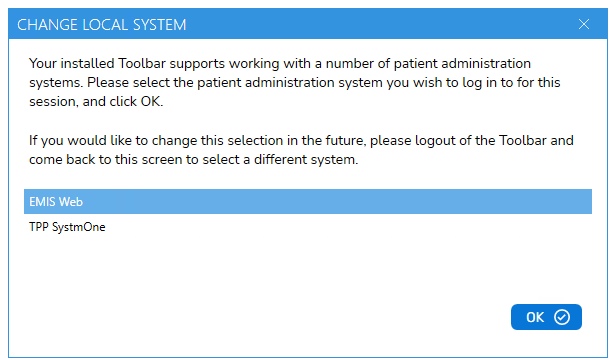
The Toolbar will display all installed and available PAS integrations. To switch:
- Right-click anywhere on the login window.
- Select "Switch Systems" from the menu.
- Choose the desired PAS from the list.
- The bottom-right label on the login screen will update to reflect the selection.
- Log in as normal. The Toolbar will authenticate against the selected PAS, and all Toolbar activity will use that integration until you switch or log out.
Preferred PAS Persistence
When the same user next launches the conneQt® Toolbar on the same machine, it will default to the most recently used PAS from the previous session.
Logging Out
If the user logs out or is automatically logged out, they will return to the login screen and may select a different PAS before logging in again.
Next Step
Once setup is complete in both systems, proceed to EMIS Configuration.