How to Review and Import Documents
A key feature of the conneQt® Toolbar is allowing users to easily review and accept or reject documents before they’re added to a patient’s record.
Review and Import into a Patient Record
Received Messages
Note
Ensure the login guide has been followed before continuing: How to Login
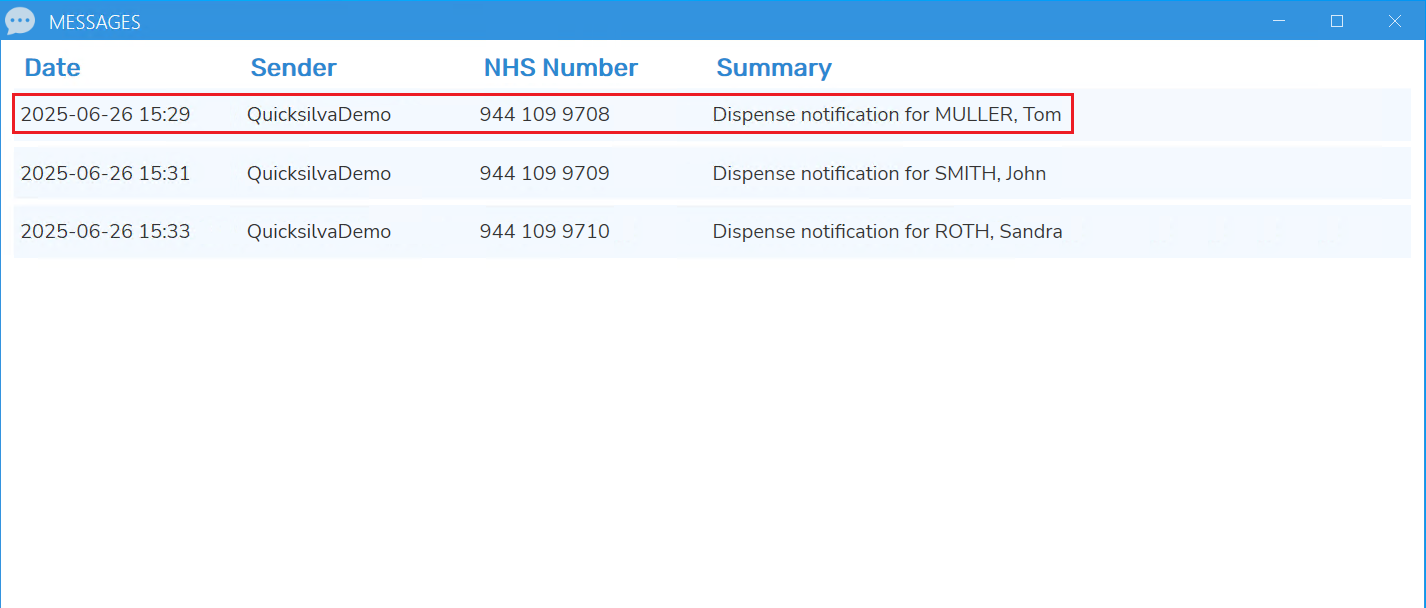
Documents will arrive in one central location under the “Received Messages” button.
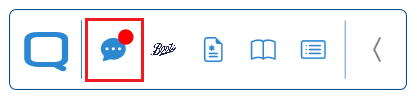
A red circle will indicate that new documents are waiting for review. To open the "Messages" panel, click the “Received Messages” button.
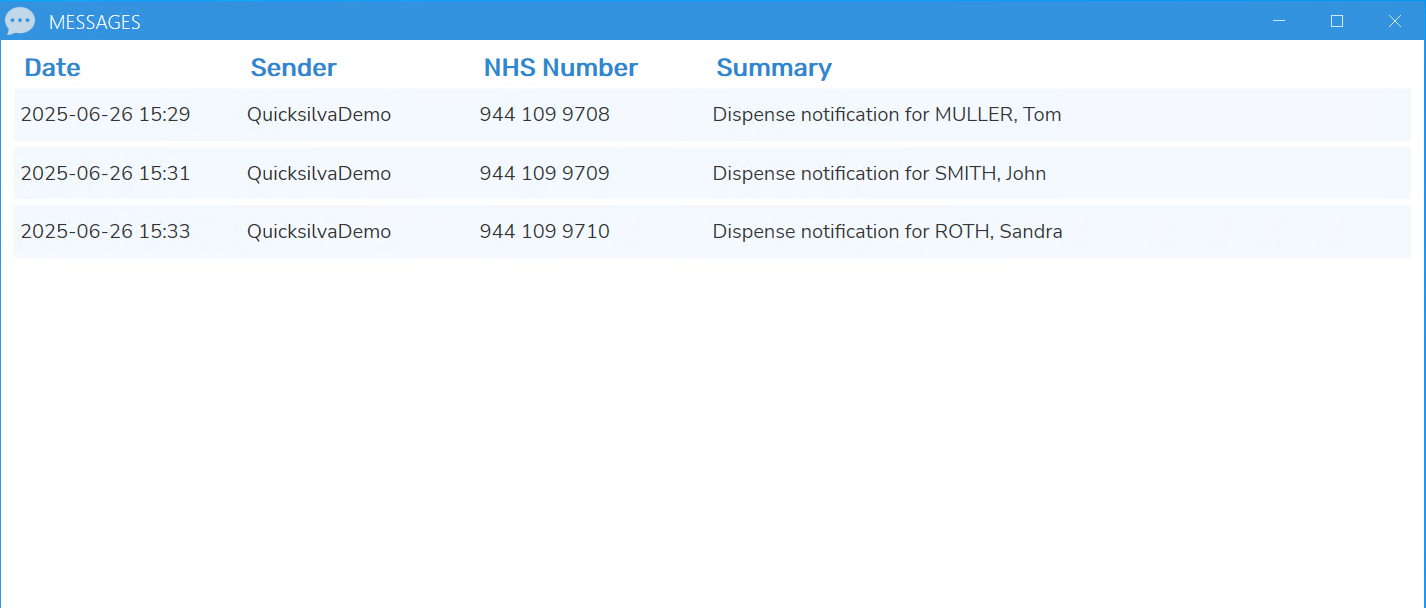
The Messages panel displays a comprehensive list of all documents shared with the organisation that are awaiting approval and import into a patient record.
Refresh Messages
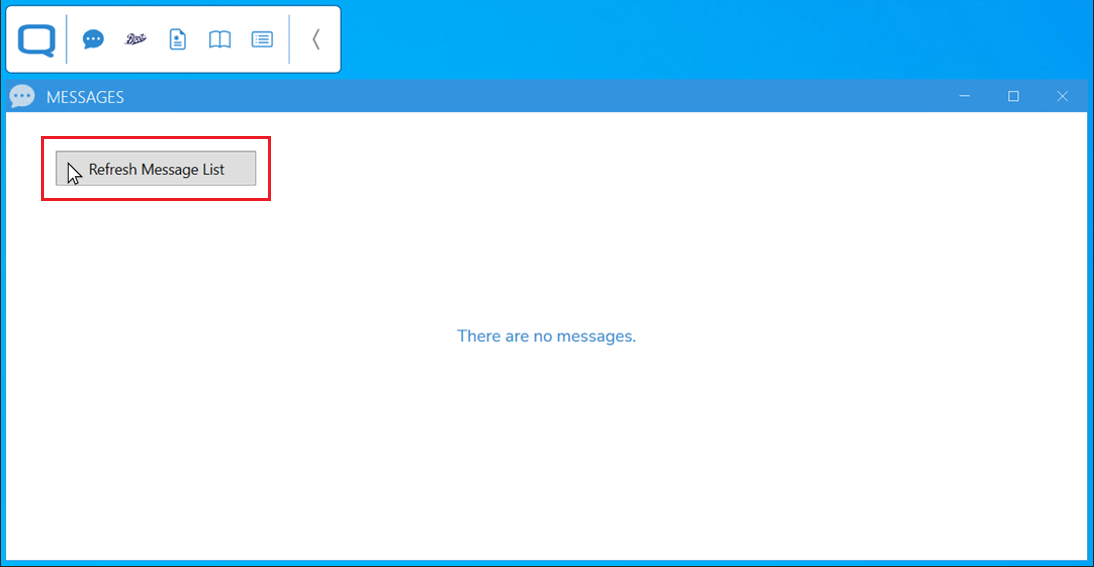
The Toolbar automatically refreshes and searches for new messages every 30 seconds. If a user is expecting a message or wishes to manually refresh to receive a new message more quickly, they can right-click within the "Messages" panel and select “Refresh Message List”.
Preview Documents
Ensure the Received Messages section has been read before continuing.
To preview any waiting documents, click on the document within the "Messages" panel.
This will display the patient details on the left and a preview of the document details to be attached on the right.
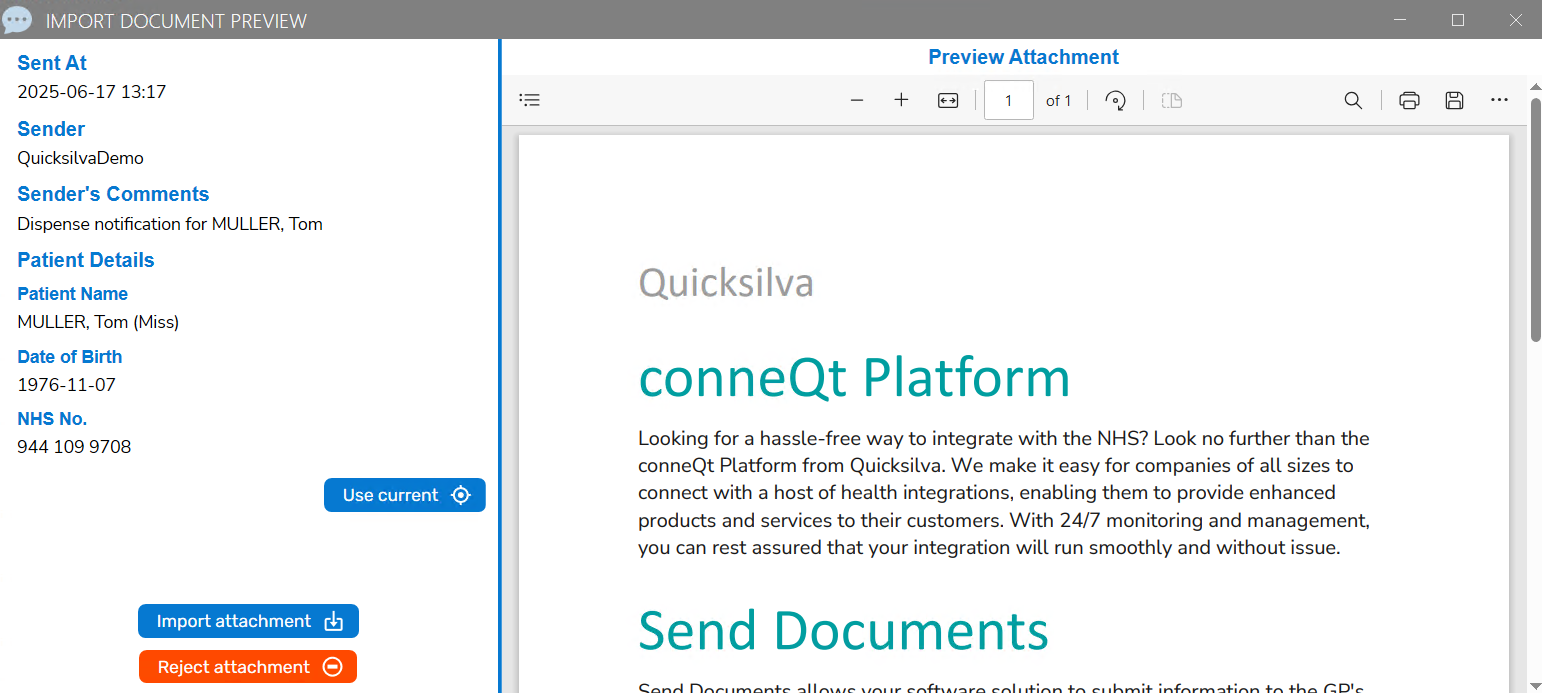
Once the document and patient details have been reviewed, there are two option:
- Import attachment.
- Reject attachment.
Import Attachment
To import the attachment directly into the patient’s record, click the “Import attachment” button.
A pop-up will appear. Choosing to “Cancel” will go back. Choosing to “Import” will upload the document to the patient record.
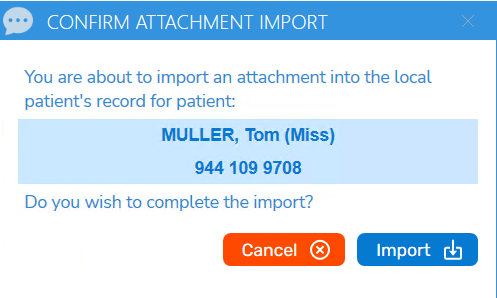
Please note that a further pop-up will appear upon choosing to “Import”.
Important
When using SystmOne, it is critical that changes are saved in the local system.
When using EMIS Web, attachments and any other data will be saved. Within EMIS Web, a banner will appear at the top of the patient record, informing the user that the record has been updated and providing the option to refresh the content
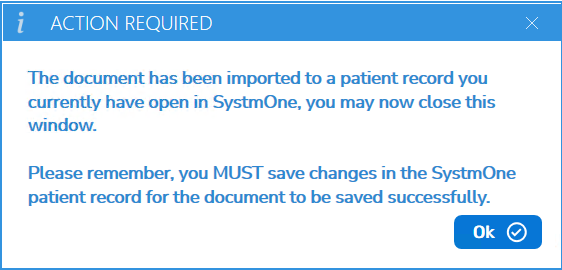
Click “Ok” to confirm the final message
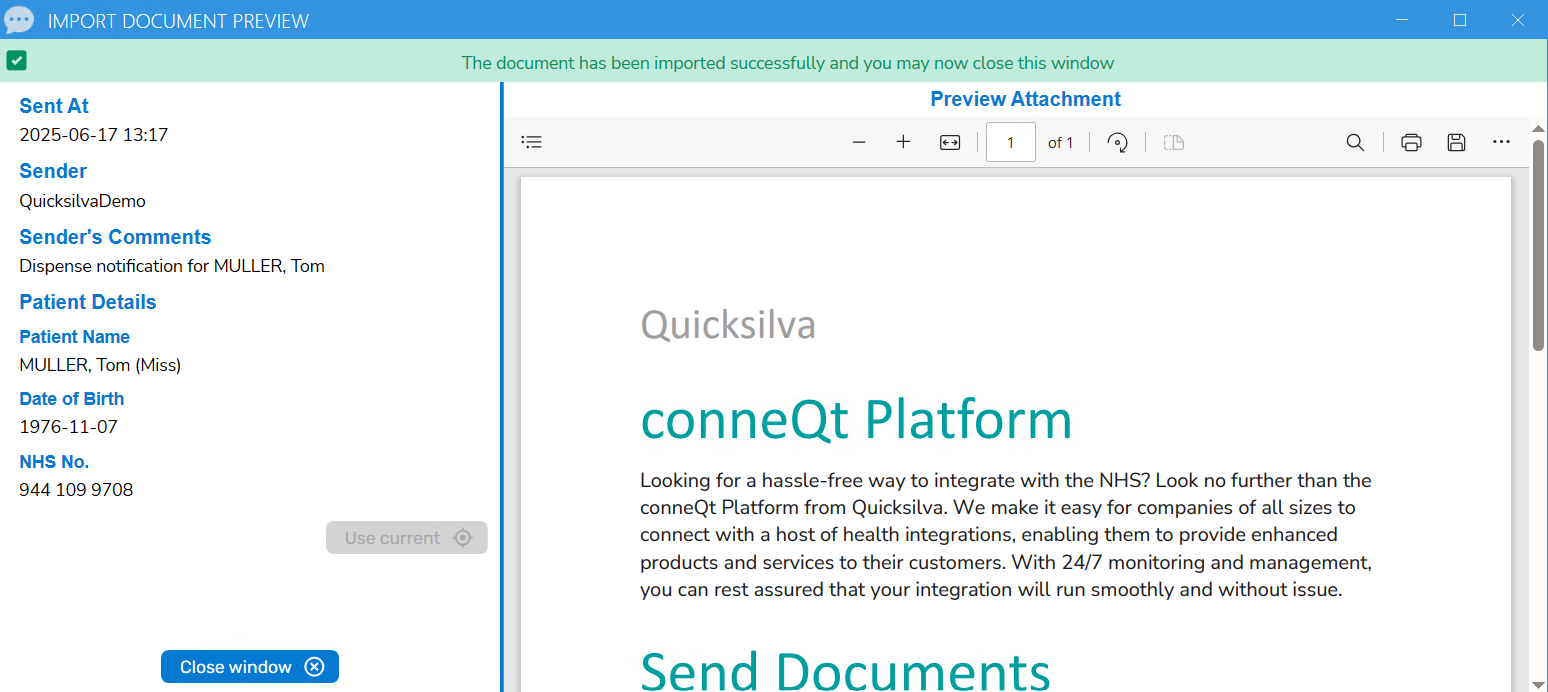
It is now safe to click "Close window".
Reject Attachment
Important
Choosing to reject a document is permanent. There is no recovery option.
If the attachment is no longer needed, follow these steps:
- Select “Reject attachment.”
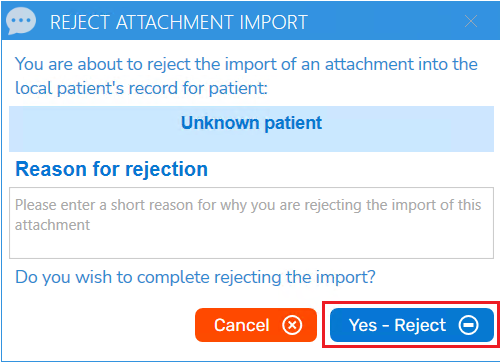
- A pop-up confirmation will appear with two options:
- “Cancel” – Return to the previous screen without rejecting the document.
- “Yes – Reject” – Permanently reject the attachment. Once rejected, the document cannot be recovered.