How to use Widgets
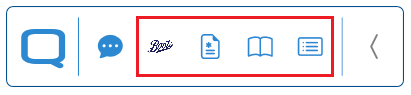
Widgets are a key feature of the conneQt® Toolbar. They appear as individual icons on the Toolbar and provide extra features to the local system.
Note
The following section may not apply to all Widgets. Some Widgets do not require patient data to be read from the local system.
Individual Widget icons and appearance will vary depending on NHS Service Provider.
Loading Widgets
Note
Ensure the login guide has been followed before continuing: How to Login
To load a Widget:
- Click on a Widget.
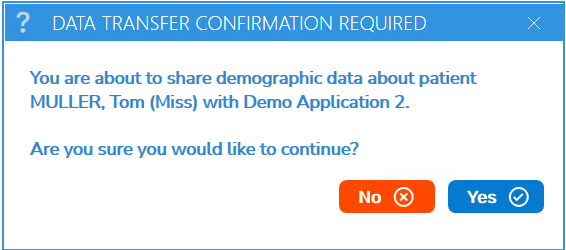
- A pop-up appear asking if the user consents to share patient demographic details with the Widget.
- Click "No" to go back or "Yes" to consent and continue.
- Upon clicking “Yes”, the Widget application page will load and populate the patient details associated with that patient.
Note
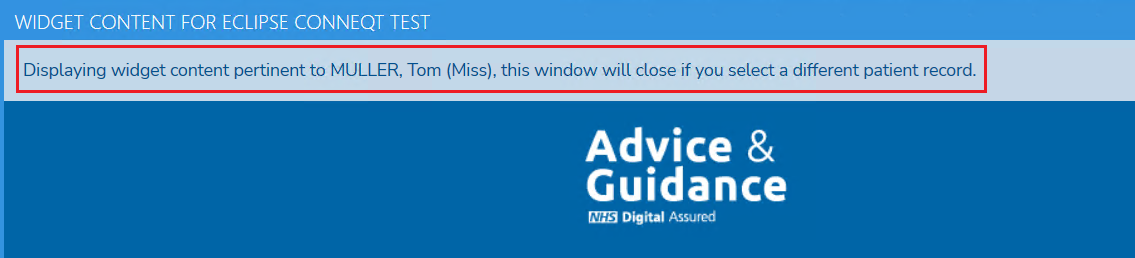
Open Widgets will close if a different patient is selected in the local system.
Stop Tracking
Important
Tracking cannot be re-enabled from within Widget. Please close the Widget, then refer to Loading Widgets to re-enable tracking.
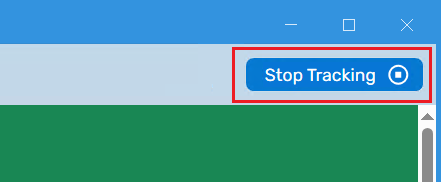
If there is no longer a requirement to continue tracking the patient, click the “Stop Tracking” button.
Click the “Yes” button to confirm.
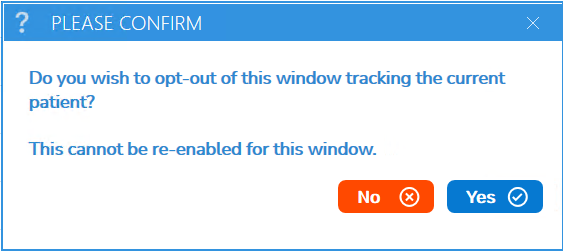
A notification will be displayed at the top of the page to say that tracking has been stopped.