How to use Pre-approved Messaging
Note
Ensure the login guide has been followed before continuing: How to Login
Please read before continuing:
- To use Pre-approved Messaging, it must first be enabled and approved by the user's NHS System Provider.
- Not all users will have Pre-approved Messaging enabled as it may not be applicable.
- Pre-approved Messages will fallback to standard document messaging How to Review and Import Documents after 10 minutes if an error is encountered.
What is Pre-approved Messaging?
The conneQt® Toolbar makes it possible to automatically send documents straight into a patient's record. This is done by having the approval process implemented within the message sender’s system.
After confirming the document details, the approval process occurs within the sender's system, requiring no further action from the user. As a result, the document is sent straight to the patient record with just a few easy steps.
How does Pre-approved Messaging work?
After final submission, the document summary will be approved by the sender’s system and then sent to the patient’s record.
Pre-approved messages are sent to a specific user, identified during the approval process, using a generated link token issued to the sending system.
A notification will appear in the bottom right of the screen, above the system clock, to show that a document has been imported into a patient record.
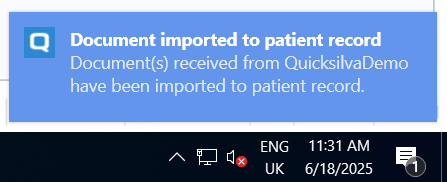
No further action is required.
Messaging Authentication
The Toolbar user will need to generate a one-time authentication code and provide it to the NHS Service Provider to complete authentication and proceed. The method by which the user will need to send the authentication code — for example, via an app, text message, or direct contact — will be determined by the provider.
One-time authentication codes are valid for 60 seconds. After that, a new code is generated automatically. To authenticate successfully, complete the process within that time. Follow any instructions from the provider and complete the steps promptly.
To authenticate, follow these steps:
Right-click on the Toolbar.
Click on “Pre-approved messages”.
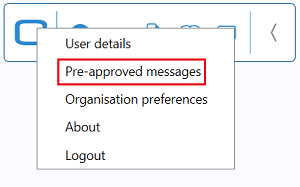
Click on “Create a new access token”.
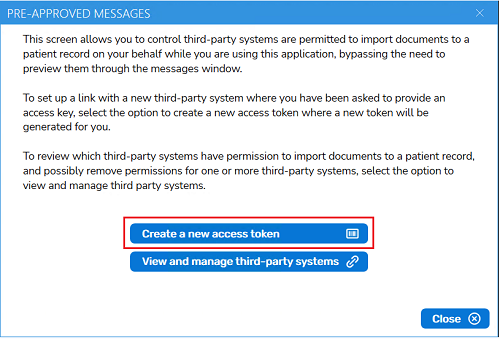
This will generate an eight character token code which will need to be given to the NHS Service Provider to enter into their system to allow for the user's Toolbar to authenticate.
Once confirmed successfully authenticated with the NHS Service Provider, the window can be closed.
Once successfully authenticated, there is no need to authenticate again unless the user or the NHS Service Provider revokes access.
Revoking Authentication
Important
Please use caution when revoking access:
- Access is revoked immediately.
- The other side will not be notified they can no longer send messages.
- To re-establish access, follow: Messaging Authentication
To revoke access, follow these steps:
- Right-click on the Toolbar.
- Click on “Pre-approved messages”.
- Click on “View and manage third-party systems”.
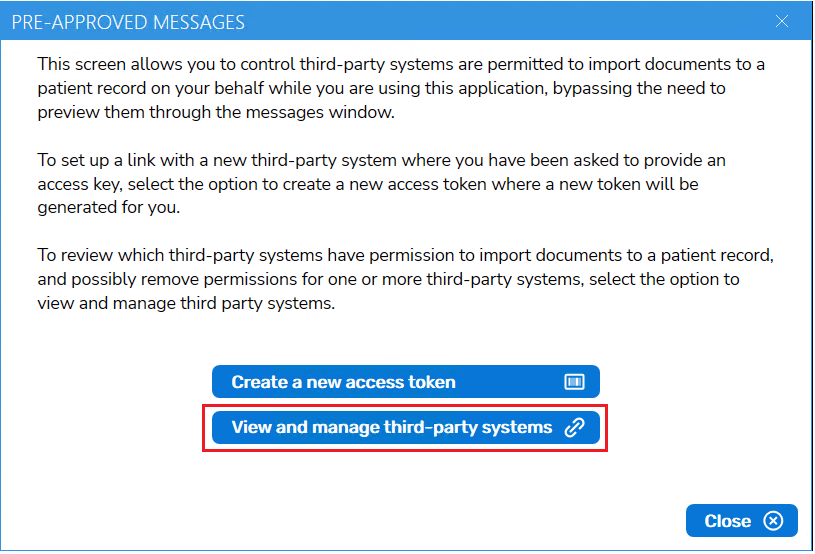
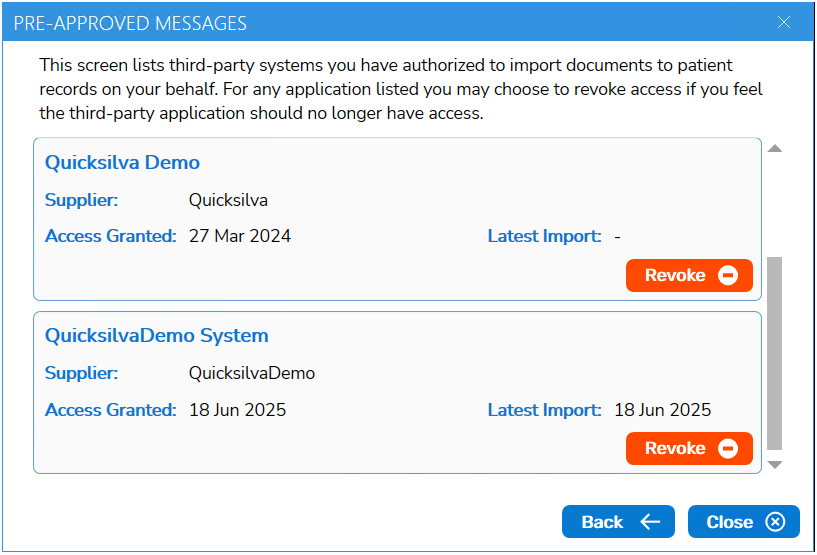
The user will be presented with a list of the organisations that are currently authorised to import documents to patient records on their behalf.
To revoke an organisation's pre-approved messaging access, the user can click the “Revoke” button next to the organisation's name.
- Click “Close” once finished.